安装
npx -y @deepseek-ai/dsh plugin --profile web add github:loadingvx/deepseek-harness-workbench-plugin此安装命令根据 GitHub 仓库地址生成,是未经验证的安装起点。
README
维护者编写的文档快照。
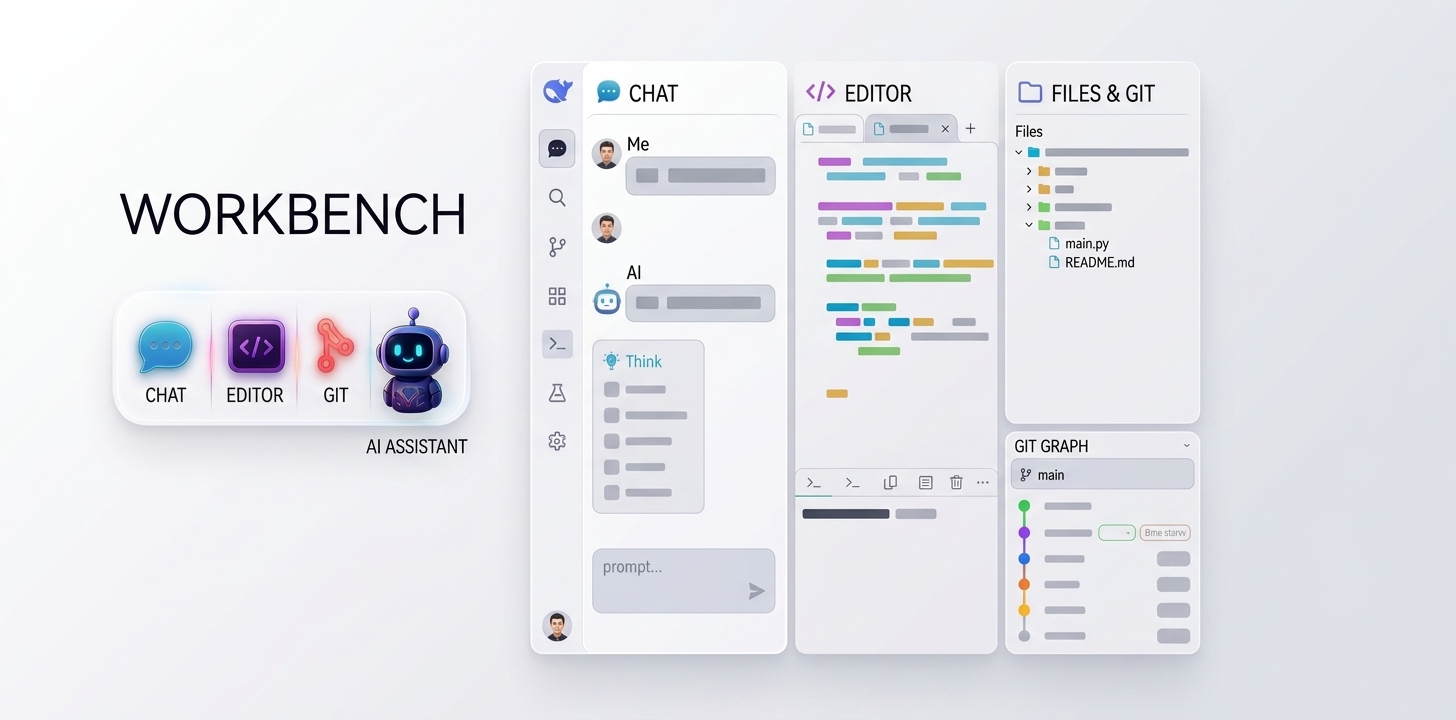
A workbench plugin for the DeepSeek Harness Web UI. After Workbench is opened in Conversation, chat stays on the left. Two new columns appear on the right: the editor (syntax highlighting and terminal) and files & Git.
Contents
- Architecture
- Core capabilities
- Capability matrix
- Release
- Installation
- Upgrade
- Interface
- Workspace terminal
- AI command assist
- License
Interface
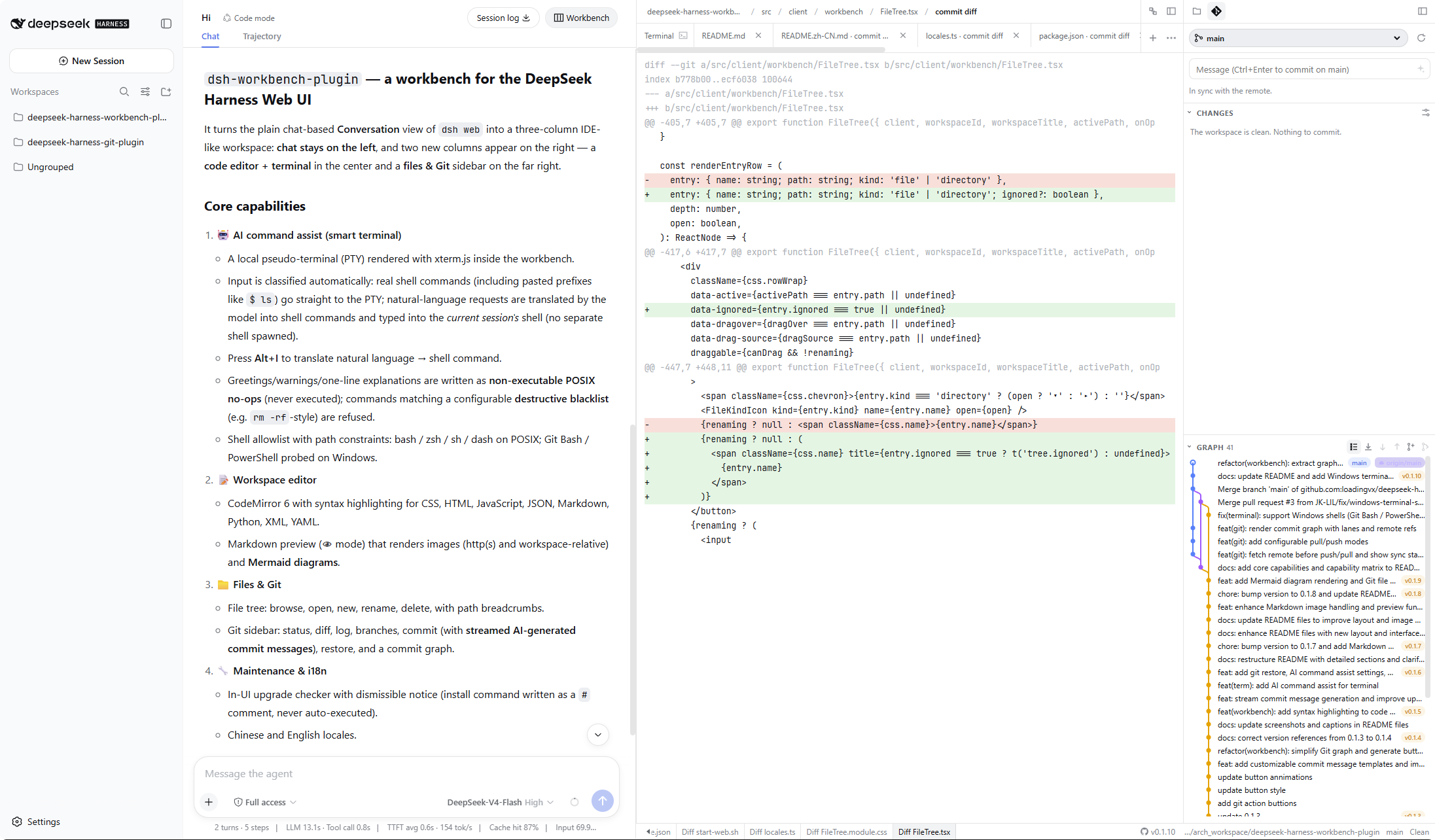
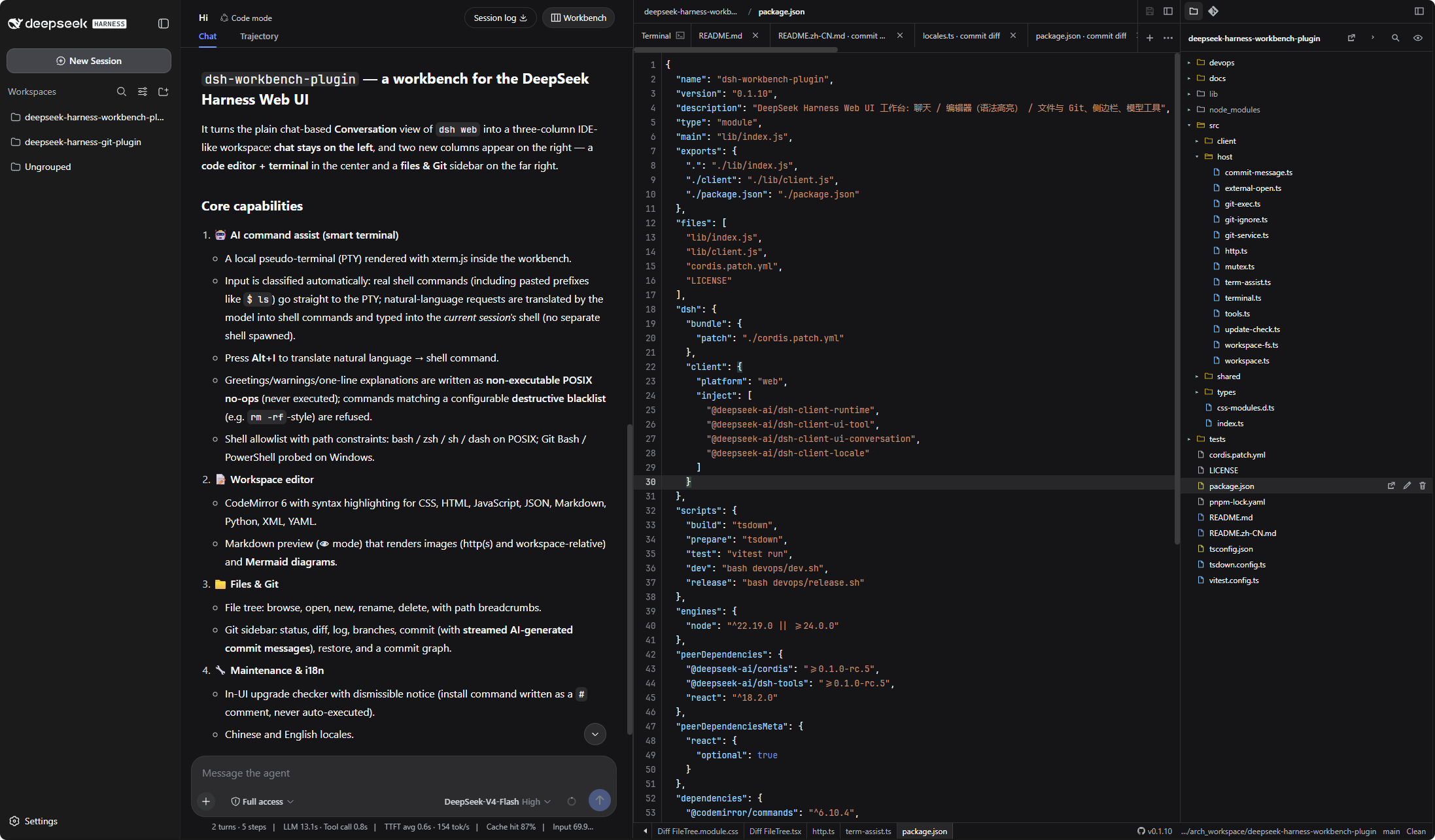
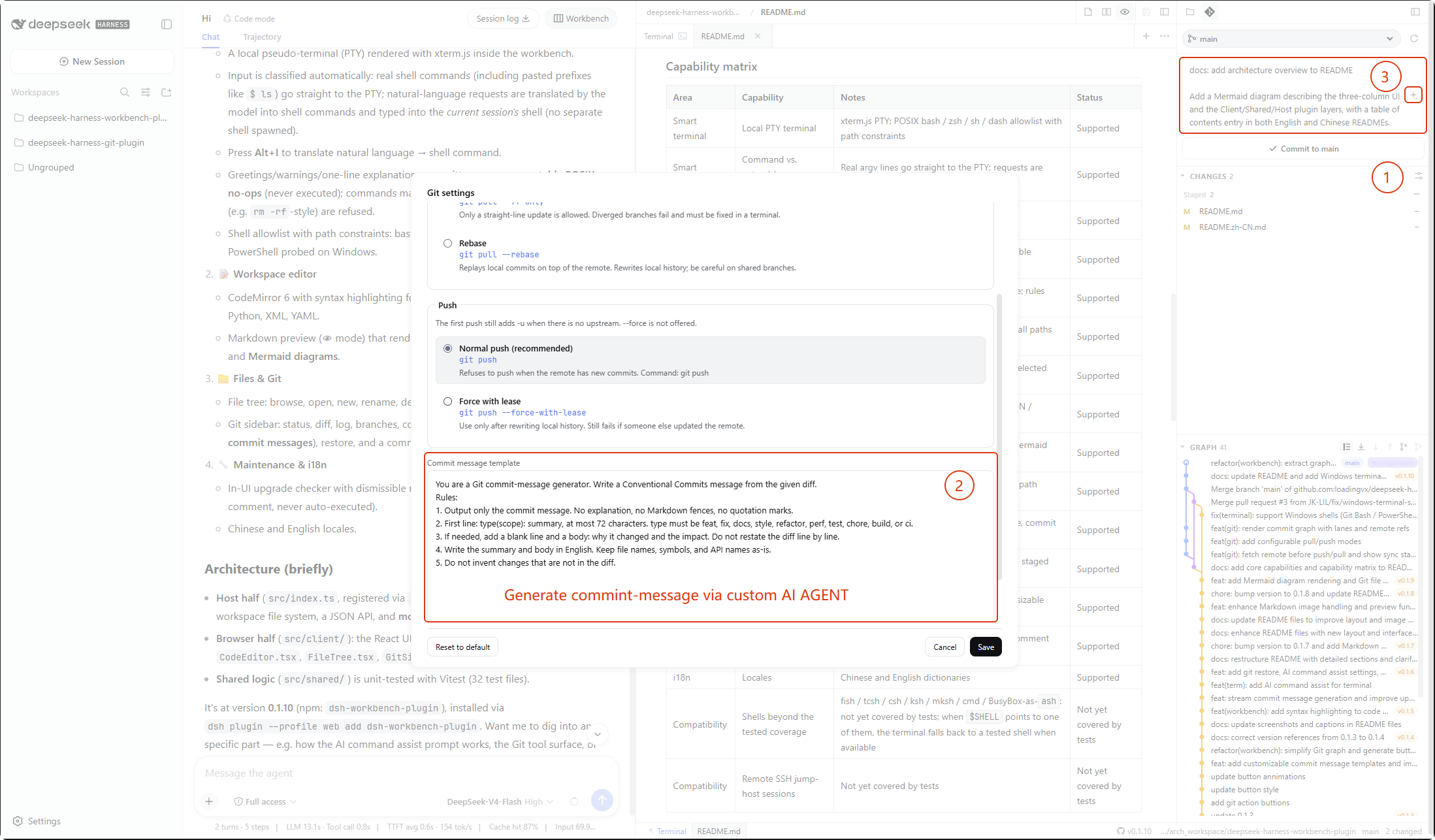
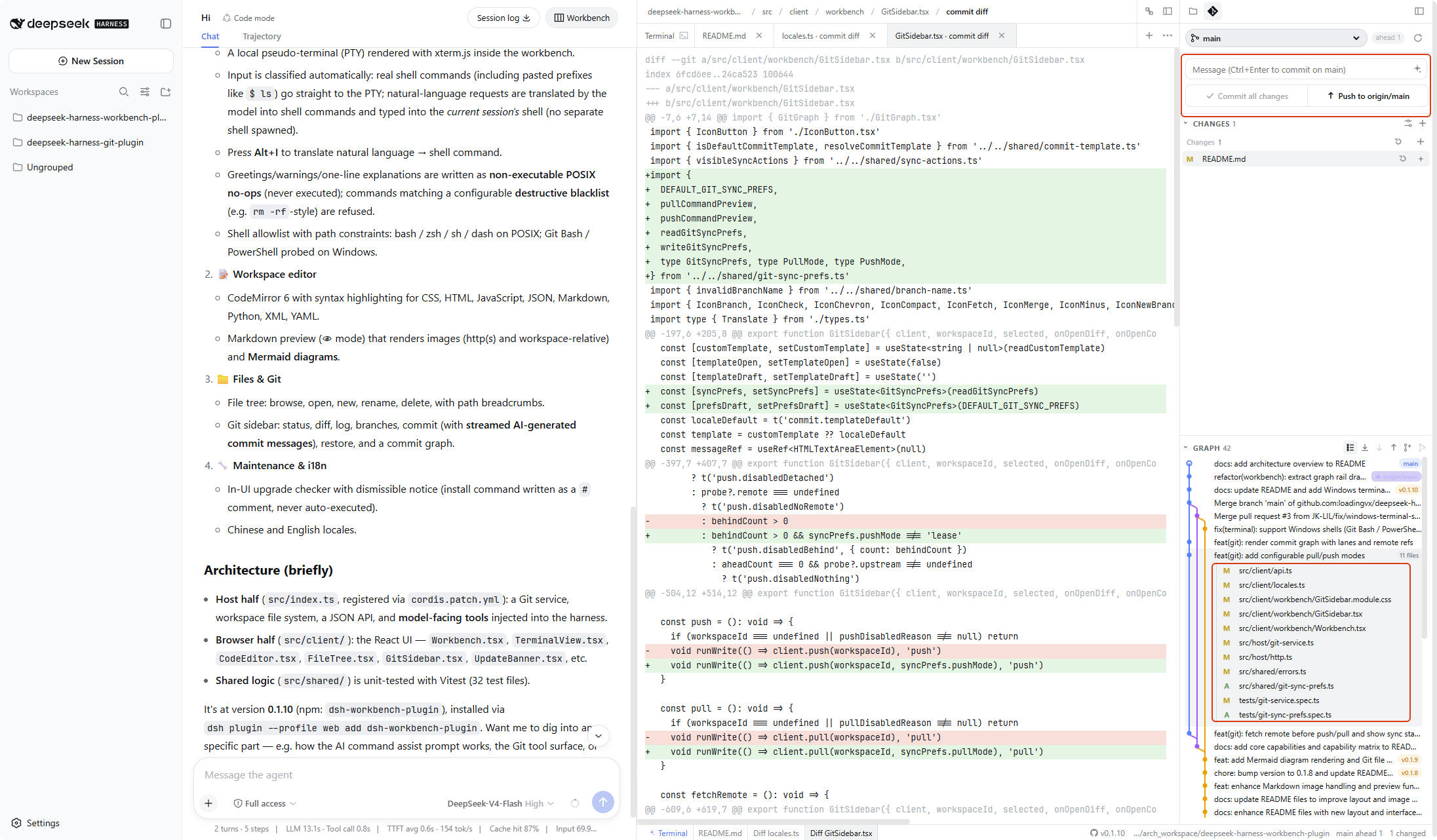
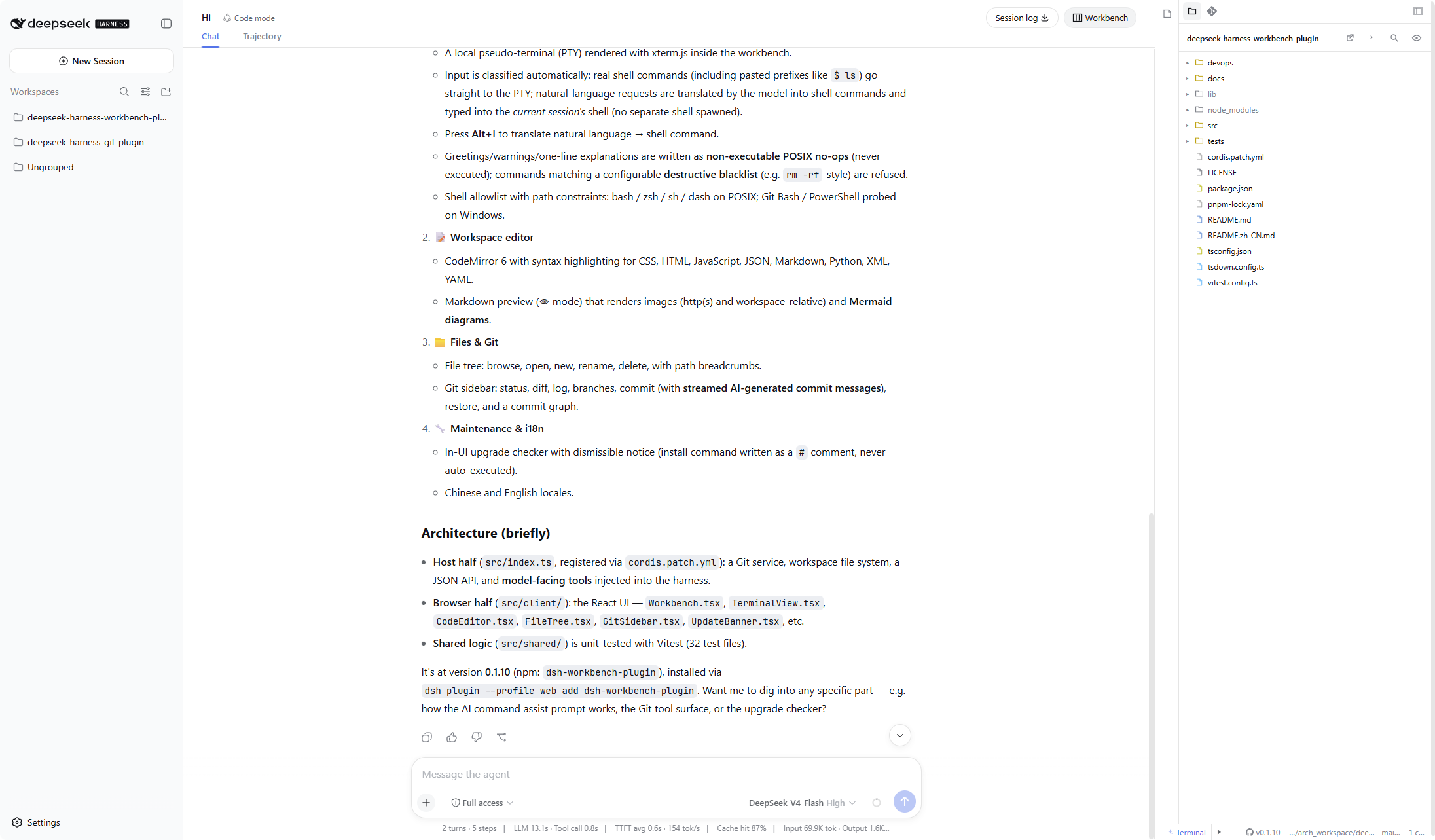
The workbench uses a three-column layout. Conversation stays on the left. The two columns on the right are the new capability area: editor and terminal in the center, file tree and Git on the far right.
Core capabilities
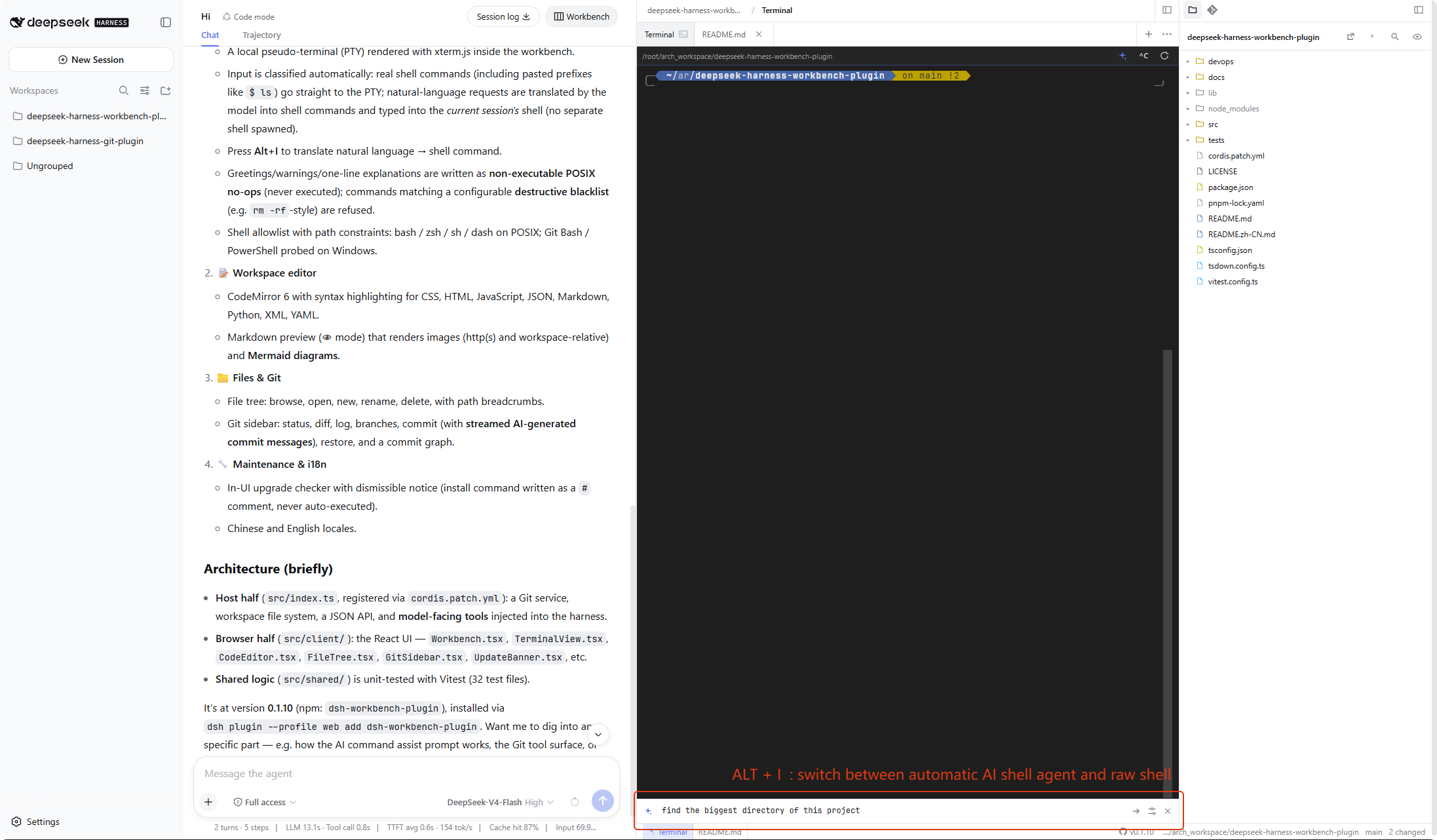
- Smart terminal. A local pseudo-terminal (PTY) inside the workbench. Input is classified automatically — lines that are real shell commands (including pasted prompt prefixes like
$ ls) go straight to the PTY, while natural-language tasks are translated by the model into shell commands and typed into the current session shell; no separate shell is started. Greetings, warnings and one-line explanations are written as non-executable POSIX no-ops, and commands matching the configurable destructive blacklist are refused with a note. - Workspace editor. CodeMirror 6 with syntax highlighting for CSS, HTML, JavaScript, JSON, Markdown, Python, XML and YAML, plus a Markdown preview (👁 mode) that renders images (http(s) and workspace-relative paths) and Mermaid diagrams.
- Files & Git. A file tree (browse, open, new, rename, delete) and a Git sidebar (status, diff, log, branch, commit with streamed AI commit-message generation, restore, commit graph).
- Maintenance & i18n. In-UI upgrade checker with a dismissible notice, and Chinese / English locales.
Capability matrix
| Area | Capability | Notes | Status |
|---|---|---|---|
| Smart terminal | Local PTY terminal | xterm.js PTY; POSIX bash / zsh / sh / dash allowlist with path constraints | Supported |
| Smart terminal | Command vs. natural-language classification | Real argv lines go straight to the PTY; requests are translated by the model | Supported |
| Smart terminal | Multiple terminal tabs | Alt+J opens a new tab; each tab keeps its own PTY session | Supported |
| Smart terminal | AI translation to shell commands | Alt+I; written into the current session shell | Supported |
| Smart terminal | Note isolation | Greetings / warnings written as non-executable statements, never executed | Supported |
| Smart terminal | Destructive command blacklist | Matching commands are refused with a note; rules configurable in settings | Supported |
| Smart terminal | Windows terminal — Git Bash | Probed at the standard Git for Windows install paths and selected when present | Supported |
| Smart terminal | Windows terminal — Windows PowerShell | Probed at the system PowerShell path and selected when Git Bash is absent | Supported |
| Editor | Syntax highlighting | CodeMirror 6: CSS / HTML / JavaScript / JSON / Markdown / Python / XML / YAML | Supported |
| Editor | Editing modes | Switch Plain / Emacs / Vim keymaps from the status bar; the choice persists. Emacs is the default so typing works immediately for users unfamiliar with Vim | Supported |
| Editor | Markdown preview | Images (http(s) + workspace-relative) and Mermaid diagrams | Supported |
| Files & Git | File tree | Browse / open / new / rename / delete with path breadcrumbs | Supported |
| Files & Git | Git sidebar | Status / diff / log / branch / commit / restore, commit graph | Supported |
| Files & Git | AI commit messages | Streamed commit-message generation from staged changes | Supported |
| Workbench | Three-column layout | Chat | editor + terminal | files & Git; drag-resizable with remembered widths | Supported |
| Maintenance | Upgrade checker | Notice + install command written as a # comment into the terminal | Supported |
| i18n | Locales | Chinese and English dictionaries | Supported |
| Compatibility | Shells beyond the tested coverage | fish / tcsh / csh / ksh / mksh / cmd / BusyBox-as-ash: not yet covered by tests; when $SHELL points to one of them, the terminal falls back to a tested shell when available | Not yet covered by tests |
| Compatibility | Remote SSH jump-host sessions | Not yet covered by tests | Not yet covered by tests |
Release
| Item | Description |
|---|---|
| Package | dsh-workbench-plugin |
| Version | 0.1.14 (npm tag latest) |
| Registry | https://registry.npmjs.org |
+ dsh-workbench-plugin@0.1.14
Maintainers publish npm with bash devops/release.sh. The script uses the existing npm login session on this machine. Credentials must not be stored in the repository.
The app market installs from GitHub (github:loadingvx/deepseek-harness-workbench-plugin). That path does not compile on the user's machine. Before every GitHub push: bash devops/build.sh, then commit lib/index.js and lib/client.js together with the source.
Installation
Prerequisites
DeepSeek Harness is installed, and dsh web can be started.
Procedure
- Install the plugin (pin the version; do not omit
@0.1.14):
dsh plugin --profile web add dsh-workbench-plugin@0.1.14
dsh plugin add is implemented with pnpm. pnpm 11 waits 24 hours after a version is published before it will pick it as latest. A bare dsh-workbench-plugin (no @version) can therefore install 0.1.0 and still exit 0. Pinning @0.1.14 requests that release explicitly.
If a pinned install is still refused as too new, add this to ~/.dsh/profiles/web/pnpm-workspace.yaml and run the command again:
minimumReleaseAgeExclude:
  - dsh-workbench-plugin
- Restart
dsh web. - Open http://127.0.0.1:3080, enter Conversation, and create a new session. Workbench opens on the right immediately — you do not need to send a first message. After the first turn, the header Workbench button can hide or show it.
App market / GitHub
The market command installs the GitHub tree, not the npm tarball:
dsh plugin --profile web add github:loadingvx/deepseek-harness-workbench-plugin
This only works when the default branch already contains built lib/index.js and lib/client.js. A source-only commit will fail: pnpm blocks the git-hosted prepare script unless the user adds allowBuilds. After install, restart dsh web and open Workbench as above.
Upgrade
Automatic notice
When a lower version is already installed, a dismissible notice appears at the top of the Files / Git sidebar. The upgrade description and install command are written to the workspace terminal as # comments and are not executed. Remove the leading #, press Enter, then restart dsh web.
# dsh plugin --profile web add dsh-workbench-plugin@<latest>
If the registry lookup fails, no notice is shown. Dismissing the notice skips only that latest version; a subsequent newer release will prompt again.
Upgrading from 0.1.1
Version 0.1.1 does not include the upgrade checker and will not display the notice. Install 0.1.14 manually using the command above. Later releases will prompt in the UI.
Markdown preview (the 👁 mode in the editor) renders images (http(s) and workspace-relative paths) and Mermaid diagrams (```mermaid fenced blocks, powered by mermaid.js 11).
Workspace terminal
The workspace terminal is a local pseudo-terminal (PTY). AI command assist converts natural language into shell commands and writes them into the current session shell; greetings and notes are written as non-executable statements and are never executed. Shell coverage — tested and not yet tested — is summarized in the capability matrix.
Allowed shells — POSIX
| Name | Selection criteria | Assist verification |
|---|---|---|
| bash | $SHELL is bash; otherwise the default when $SHELL is not one of the remaining rows | Verified (including failglob and interactive history expansion) |
| zsh | $SHELL is zsh | Verified (including default nomatch). Interactive zsh does not treat # as a comment by default, so notes are not written as a bare # line |
| sh | $SHELL is sh; otherwise the fallback when bash and zsh are unavailable | Verified. /bin/sh may be a symlink to bash or dash; the symlink target is used as-is |
| dash | Only when $SHELL is explicitly dash (/bin/dash, /usr/bin/dash, or /usr/local/bin/dash) | Same POSIX : no-op as sh. Dash is not included in the default candidate list |
Allowed shells — Windows
| Name | Selection criteria | Assist verification |
|---|---|---|
| Git Bash | Probed at C:/Program Files/Git/bin/bash.exe and C:/Program Files/Git/usr/bin/bash.exe; selected when present | Not yet covered by tests |
| Windows PowerShell | Probed at %SystemRoot%/System32/WindowsPowerShell/v1.0/powershell.exe; selected when Git Bash is absent | Not yet covered by tests |
Path constraints
Absolute paths are accepted only under /bin, /usr/bin, or /usr/local/bin, and only for the four POSIX names in the table above (for example /bin/bash, /usr/bin/zsh). On Windows, absolute paths to the Git Bash and PowerShell executables are accepted. All other paths, including custom installs under a home directory, are ignored so that unknown programs are not executed.
Selection order
On Windows, Git Bash is probed first, followed by the system PowerShell, then the POSIX candidates below. The POSIX order is:
$SHELL(must be on the allowlist)/bin/bash/usr/bin/bash/bin/zsh/usr/bin/zsh/bin/sh/usr/bin/sh
If none of these paths are available, the terminal cannot start. Shells not yet covered by tests (fish, tcsh, csh, ksh, mksh, cmd, and BusyBox invoked as ash) are listed in the capability matrix: when $SHELL points to one of them, the value is ignored and the terminal falls back to a tested shell when available. BusyBox is treated as sh only when the operating system exposes it as /bin/sh; the name ash is not yet covered by tests.
AI command assist
Alt+J opens a new terminal tab; each tab keeps its own isolated PTY session and AI-assist state.
Alt+I (or the sparkle button in the terminal toolbar) opens the AI command assist bar of the active terminal. It translates natural-language requests into shell commands and writes them into the shell of that terminal; no separate shell is started. Greetings, warnings, and the one-line explanation preceding a command are written as non-executable statements and are never executed.
License
MIT
项目文件与信号
以下项目是目录快照中检测到的公开仓库信号。
仓库信息
- 开发语言
- JavaScript
- 许可证
- MIT
- 最新发布
- v0.1.14
- 最后更新
- 2026年8月17日 08:50
谨慎安装
请检查源代码、权限、生命周期脚本、依赖与网络访问;不受信任的插件应先在隔离环境中测试。