Installation
npx -y @deepseek-ai/dsh plugin --profile web add github:PicGo/dsh-pluginThis installation command is an unverified starting point generated from the GitHub repository address.
README
Maintainer-authored documentation snapshot.
@picgo/dsh-plugin
Upload images and files to your image host from DeepSeek Harness, powered by PicGo.
Harness can show your agent a screenshot, but it has no way to turn a local file into a link. So when the agent writes a README, renders a chart, or captures a screenshot, the image stays on disk and  becomes a dead link the moment you push. This plugin closes that gap.
It uploads through whatever image host you already configured in PicGo — PicGo Cloud, GitHub, S3, Tencent COS, Qiniu, or any third-party uploader plugin you installed. Nothing to re-configure. If you've never used PicGo, it walks you into PicGo Cloud's free tier.
Install
dsh plugin --profile web add @picgo/dsh-plugin
Then boot as usual:
dsh --profile web
What you get
picgo_upload — a tool the model calls on its own when a local file needs to become a link. Returns structured results, so in Code Mode you can use it directly:
const { uploaded } = await tools.picgo_upload({ paths: ['/tmp/chart.png'] })
console.log(uploaded[0].imgUrl)
/picgo — a command that uploads without spending a model turn:
| Command | What it does |
|---|---|
/picgo | Upload the clipboard image |
/picgo <path>... | Upload one or more files |
/picgo status | Show the active host and sign-in state |
/picgo login [token] | Sign in to PicGo Cloud |
/picgo logout | Sign out |
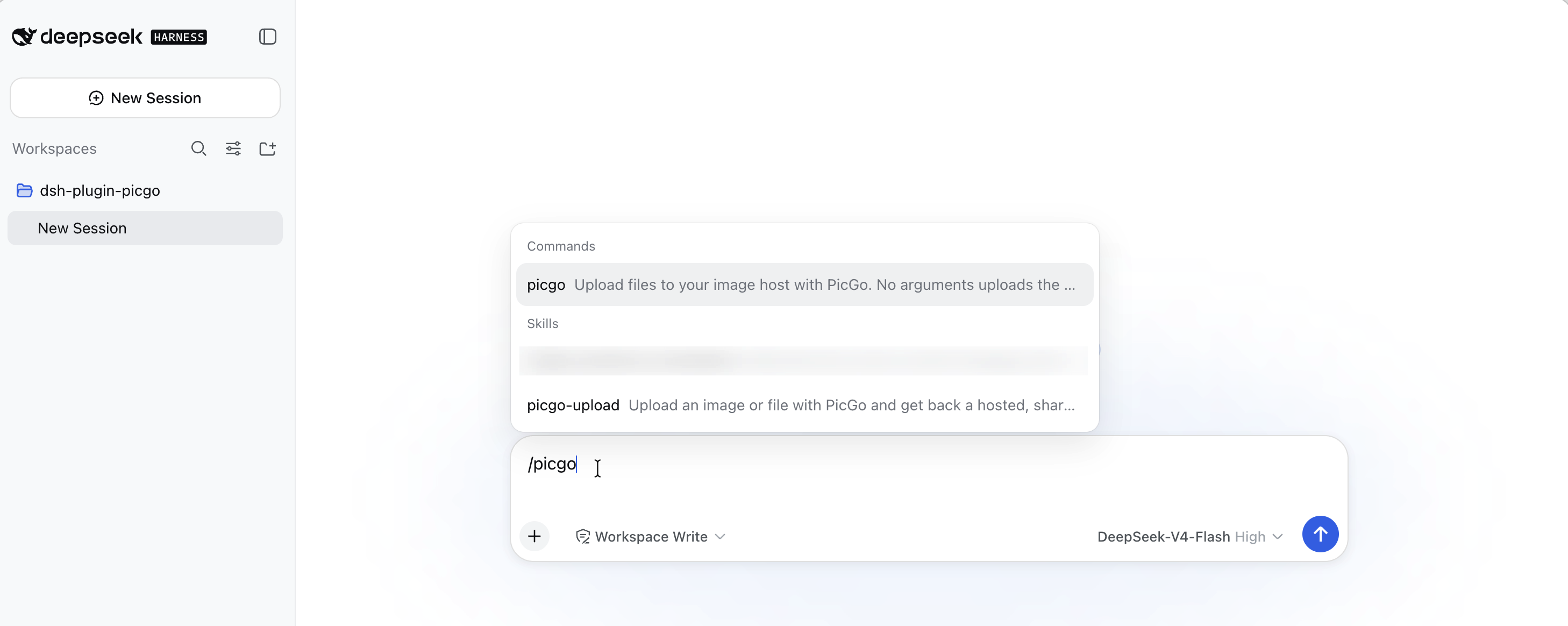
A bundled skill that teaches the model when to upload — inserting a screenshot into docs is the primary case — and when not to (you named a specific destination, you want a local copy).
First run
If you've never configured PicGo, uploads default to PicGo Cloud, which needs a one-time sign-in. The free tier covers casual use.
/picgo login
That opens your browser and reports back when it completes. If you already have a token from the PicGo Cloud dashboard, /picgo login <token> is instant.
The model will never run this for you: with no token the sign-in blocks waiting on a browser callback, which would hang the session. It relays the instruction and waits.
Already using GitHub, S3, or another host in PicGo? None of this applies — your existing config is used as-is and no sign-in is involved.
Configuration
Every field has a working default. Override them from your profile's cordis.patch.yml:
- id: picgo
  name: '@picgo/dsh-plugin'
  config:
    silent: true
    timeoutMs: 120000
| Field | Default | Meaning |
|---|---|---|
configPath | '' | PicGo config file; empty uses PicGo's own default (~/.picgo/config.json) |
silent | true | Suppress PicGo's console output and its picgo.log writes |
timeoutMs | 120000 | How long to wait for one upload |
registerSkill | true | Register the bundled picgo-upload skill |
registerCommand | true | Register the /picgo command |
announceSignIn | true | On startup, point a signed-out PicGo Cloud user at /picgo login |
A patch replaces a row's entire config rather than merging keys, so restate every field you want to keep.
Notes
Uploaded links are public. Anyone with the URL can open it, and a deleted file may stay cached. Fine for screenshots and doc images; think before uploading a contract PDF or an internal archive. The bundled skill tells the model to confirm first for anything that looks sensitive.
Your PicGo config is treated as read-only, with one exception outside this plugin's control: when PicGo Cloud rejects a stored token, PicGo itself clears it from ~/.picgo/config.json. Signing in and out through /picgo login / /picgo logout also writes the token, as you'd expect.
Clipboard uploads need a desktop session and are only reachable through /picgo — the model is never given a way to upload your clipboard, since it can't know what's on it.
Development
pnpm install
pnpm build
pnpm test
To run it against a dsh source checkout without packaging, write a cordis.dev.yml (gitignored — the path is specific to your machine):
- insert:
    - id: picgo
      name: '/absolute/path/to/dsh-plugin/lib/index.js'
Then, from the dsh checkout:
pnpm dsh web --patch /absolute/path/to/dsh-plugin/cordis.dev.yml
The path must be absolute: a patch adds config but does not move the loader's resolution root.
Releasing
@picgo/bump-version bumps the version, writes the changelog, commits, and tags in one step:
pnpm release          # patch: 0.1.0 -> 0.1.1
pnpm release:minor    # 0.1.0 -> 0.2.0
pnpm release:major    # 0.1.0 -> 1.0.0
pnpm release:beta     # 0.1.0 -> 0.1.1-beta.0
pnpm release:dry      # print what would happen, change nothing
Then push the tag — that is what triggers publishing:
pnpm push-release
The release workflow runs typecheck, tests, and build before publishing, and refuses to publish if the tag does not match package.json. Prerelease tags pick their own dist-tag (-beta.x → beta, -alpha.x → alpha, anything else prerelease → next), so npm install @picgo/dsh-plugin never resolves to a prerelease.
npm authentication
npm cannot configure a trusted publisher for a package that does not exist yet, so the first release and every later one authenticate differently.
First release — needs an NPM_TOKEN repository secret (a granular token with publish rights to the @picgo scope):
gh secret set NPM_TOKEN --repo PicGo/dsh-plugin
After that first release lands, switch to trusted publishing so no long-lived token is involved. On npmjs.com, open the package → Settings → Trusted Publisher, and register:
| Field | Value |
|---|---|
| Publisher | GitHub Actions |
| Organization or user | PicGo |
| Repository | dsh-plugin |
| Workflow filename | release.yml (filename only, not a path) |
| Environment name | leave empty |
| Allowed actions | npm publish |
The workflow already sets id-token: write, so nothing changes on this side — npm picks OIDC over the token automatically. Once a trusted-publish release succeeds, delete the NPM_TOKEN secret and revoke the token, then set Settings → Publishing access to "Require two-factor authentication and disallow tokens".
Trusted publishing needs npm ≥ 11.5.1, so the release workflow runs on Node 24 (which ships npm 11.x). Node 22 ships npm 10.x and fails with a misleading 404. That choice affects only the machine doing the publishing — the package itself still supports Node ^22.19.0 || >=24.0.0, and CI tests against 22.
Compatibility
Tested against DeepSeek Harness 0.1.0-rc.5 (commit 47f9438, 2026-08-13) and PicGo Core 3.0.1. Requires Node ^22.19.0 || >=24.0.0.
Harness is a developer preview and its APIs change often. If a release breaks this plugin, please open an issue.
License
MIT
Project files and signals
Shown items are public repository signals detected in the directory snapshot.
Repository information
- Language
- TypeScript
- License
- Not reported
- Last updated
- Aug 17, 2026, 2:33 AM
Install deliberately
Review source code, permissions, lifecycle hooks, dependencies and network access. Test untrusted plugins in an isolated environment.