安装
npx -y @deepseek-ai/dsh plugin --profile web add github:RealHacker/dsh-theme-colorizer此安装命令根据 GitHub 仓库地址生成,是未经验证的安装起点。
README
维护者编写的文档快照。
dsh-theme-colorizer
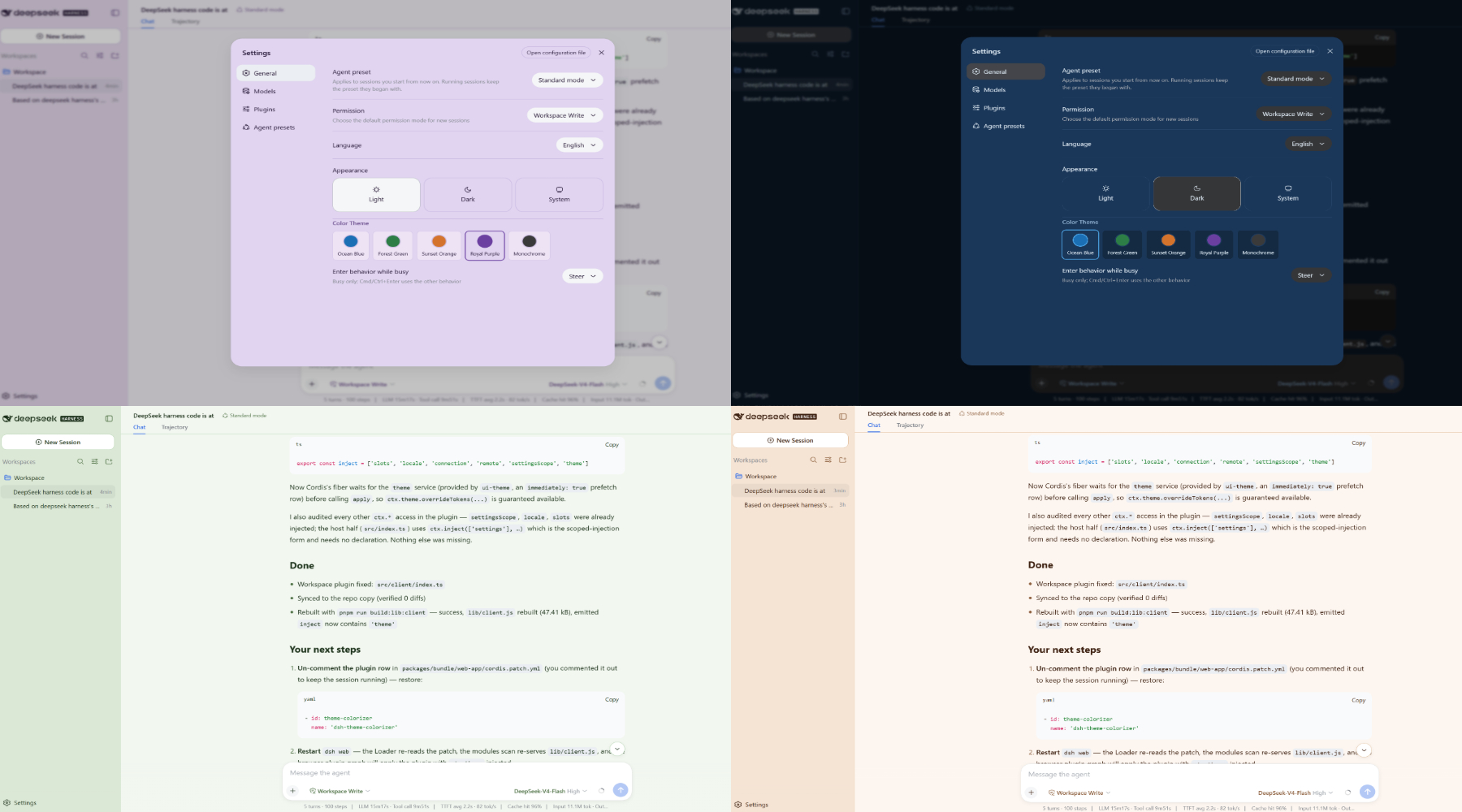
A DeepSeek Harness (DSH) plugin that adds customizable color themes to the DeepSeek Web UI. The user selects a color theme on the Settings page, and the chosen theme's --dsw-alias-* CSS token overrides are applied on top of the active light/dark base palette.
Features
- 5 color themes: Ocean Blue, Forest Green, Sunset Orange, Royal Purple, Monochrome
- Settings page integration: a "Color Theme" row appears in the General section of the Settings panel
- Persisted preference: the user's choice is stored in the DSH user-settings document and survives restarts
- Composes with the built-in Appearance row: the color theme is independent of the light/dark/system preference — both layers compose through the theme service's override stacking
How it works
The DSH plugin loading model
A DSH plugin is a Cordis plugin module. It exports an apply(ctx) function that the Cordis loader calls with a context (ctx). Every registration the plugin makes — settings namespaces, theme overrides, slot registrations — is an effect on that context, so unloading the plugin automatically tears down its contributions.
This plugin has two halves because it contributes to both the Host (Node.js server) and the Client (browser) sides of the DSH web application:
Host side (src/index.ts)
The Host half runs in the Node.js process. It registers a settings namespace (theme-colorizer) with the DSH settings service. This namespace stores the user's selected color theme id in the user-settings document (e.g., settings.yml). The registration is an effect on the plugin's fiber, so disposing the plugin removes the namespace.
When loaded: at server startup, when the Loader reads cordis.yml and mounts this plugin entry. The Host half injects ['settings'], so it waits until the settings service exists before running.
Client side (src/client/index.ts)
The Client half runs in the browser. It:
-
Binds the settings scope — connects to the Host's
theme-colorizernamespace through thectx.settingsScopetransport. It reads the stored color theme id and subscribes to changes. -
Applies token overrides — calls
ctx.theme.overrideTokens('dsh-theme-colorizer', tokens)to overlay the selected theme's--dsw-alias-*CSS custom properties on top of the active base palette. The theme service composes override layers in stacking order; later layers win per-token. The plugin's layer is identified by the source string'dsh-theme-colorizer', so re-calling with the same source replaces the layer atomically. -
Registers a settings row — injects into the
settings.general.itemslot and registers aThemeColorRowReact component that renders the five color-theme swatches. The component receives the current selection and asetColorThemecallback through its inject face.
When loaded: when the browser's module loader constructs the window.__DSH_BOOT__ plugin graph. The dsh.client manifest in package.json declares this is a web plugin with immediately: false, so it loads during the normal plugin graph initialization (not in the stage-one prefetch tier).
Settings row rendering
The ThemeColorRow component renders inside the General section of the Settings panel. It uses the DSH slot system:
- The
ui-settingspackage declares thesettings.general.itemslot type - The
ui-settings-generalpackage renders the General section and its item slots - This plugin registers into that slot with
id: 'theme-colorizer'andorder: 20(placing it after the built-in Appearance row at order 10)
Theme token override flow
User picks "Forest Green" in Settings
  → ThemeColorRow calls setColorTheme('forest-green')
  → Client plugin writes to settings scope (Host persists it)
  → Client plugin calls ctx.theme.overrideTokens('dsh-theme-colorizer', forestTokens)
  → ThemeRuntime publishes theme/change event
  → ui-layout's ThemePresenter reads the new snapshot
  → CSS variables on <body> update
  → All components re-render with new colors
Installation
Prerequisites
- A working DeepSeek Harness installation (the
deepseek-harnessrepository checkout) - The DSH web app is built and running (
pnpm run dev:webordsh web)
Method A (recommended): install as a bundle with dsh plugin add
The plugin is packaged as an installable bundle. Two manifest entries make that work:
package.jsondeclares"dsh": { "bundle": { "patch": "./cordis.patch.yml" } }— the bundle layercordis.patch.ymlat the package root inserts the plugin row into the composition
dsh plugin installs bundles into a profile with a single command, exactly like the built-in dshmarket/dsh-better-sidebar plugins in the web profile.
1. Build the plugin (the build config lives in the harness checkout):
cd E:\Deepseek\deepseek-harness
pnpm run build:lib:client
This emits packages\client\dsh-theme-colorizer\lib\ (node half index.js/invariant.js + browser half client.js).
2. Sync the built output into the workspace copy (the installable artifact):
Copy-Item -Recurse -Force packages\client\dsh-theme-colorizer\lib E:\Deepseek\Workspace\plugins\dsh-theme-colorizer\
3. Pack a tarball and install it into the web profile:
cd E:\Deepseek\Workspace\plugins\dsh-theme-colorizer
pnpm pack --pack-destination E:\Deepseek\Workspace\plugins\dist
dsh plugin --profile web add E:\Deepseek\Workspace\plugins\dist\dsh-theme-colorizer-1.0.0.tgz
That initializes the profile if needed, installs the package, and appends dsh-theme-colorizer to the profile's dsh.profile.bundles. Verify without booting:
dsh --profile web --dump-config # shows a "# == dsh-theme-colorizer" layer with the theme-colorizer row
4. Restart dsh web.
Why a tarball and not a plain add <directory> or file: spec?
- A plain directory
adduses pnpm'slink:— a junction to your source dir. Node resolves the module's realpath, so the plugin's@deepseek-ai/*imports start walking fromE:\Deepseek\Workspace\...and never reach the in-box fallback$DSH_HOME/profiles/node_modules(the healed module fallback that supplies every@deepseek-ai/*package at runtime). file:specs mangle Windows drive-letter paths in pnpm (ENOENT: scandir '<profile>\E:\...').- A tarball extracts the package inside the profile's own
.pnpmstore, so its realpath stays under$DSH_HOME/profiles/and every runtime import resolves through the fallback. That is why the installable manifest declares no runtime dependencies: all@deepseek-ai/*imports are in-box packages served by the fallback, andclsxis inlined into the browser bundle. (workspace:^ranges would also break pnpm installs outside the harness workspace —ERR_PNPM_WORKSPACE_PKG_NOT_FOUND.)
To update the plugin later: rebuild, re-sync lib/, re-pack, then dsh plugin --profile web add <tarball> again (or bump the version first). To remove it: dsh plugin --profile web remove dsh-theme-colorizer.
Method B: build-integrated (manual, for development inside the checkout)
Use this only when developing against the harness source tree directly. Do not combine with Method A — both would insert the same theme-colorizer row id into the composition.
Step 1: Place the plugin in the packages directory
Copy the plugin into packages/client/ of the deepseek-harness repository:
Copy-Item -Recurse E:\Deepseek\Workspace\plugins\dsh-theme-colorizer packages\client\dsh-theme-colorizer
Or use a junction for live edits:
New-Item -ItemType Junction -Path packages\client\dsh-theme-colorizer -Target E:\Deepseek\Workspace\plugins\dsh-theme-colorizer
Step 2: Register the plugin as a TypeScript project
The DSH build is two-phase: tsc -b compiles every package and emits lib/types/*.js, then tsdown bundles each package from those files. tsc -b only compiles packages listed as project references, so add the package to tsconfig.client.json:
{ "path": "./packages/client/dsh-theme-colorizer" },
Step 3: Add the plugin to the web-app composition
In packages/bundle/web-app/cordis.patch.yml, add the entry under the dsh.client rows section:
    - id: theme-colorizer
      name: 'dsh-theme-colorizer'
Step 4: Add the package as a dependency
In packages/bundle/web-app/package.json, add "dsh-theme-colorizer": "workspace:^" to dependencies and devDependencies.
Step 5: Install and build
cd deepseek-harness
pnpm install
pnpm run build:lib:client
Do not use pnpm run build --filter dsh-theme-colorizer — the package has no standalone build script, and tsdown alone cannot build it (its entry points are the lib/types/*.js files that only the tsc -b phase produces). pnpm run build:lib:client runs tsc -b tsconfig.client.json then tsdown --env.DSH_BUILD_FACE client; the workspace tsdown pass auto-discovers the package through the packages/*/* glob.
Restart the web server (both methods)
If the web server is already running, restart it so the Loader re-reads the composition and the modules scan re-serves the plugin bundle:
# Using dsh CLI:
dsh web

# Or during development:
pnpm run dev:web
Verification
- Open the Web UI at
http://127.0.0.1:3080 - Click the Settings icon (gear) in the sidebar
- In the General section, you should see the "Color Theme" row with five colored swatches
- Click a swatch — the UI colors should update immediately
- The selection persists across page reloads (it is stored in the DSH user-settings document)
Troubleshooting
[UNRESOLVED_ENTRY] Cannot resolve entry module lib/types/index.js
This means tsdown ran before TypeScript emitted lib/types/index.js — i.e. tsc -b did not compile this package. The DSH build compiles first (tsc -b emits lib/types/*.js) and bundles second (tsdown reads those files). The two usual causes:
- The package is not a project reference. Add
{ "path": "./packages/client/dsh-theme-colorizer" }to thereferencesarray oftsconfig.client.json(Method B, Step 2), then runpnpm run build:lib:client. - tsdown ran directly. Run the full pipeline —
pnpm run build:lib:client— instead oftsdown/pnpm run bundlealone. After a successful build,packages/client/dsh-theme-colorizer/lib/types/should containindex.js,invariant.js, andclient/index.js.
cannot get property "theme" without inject
The client half accesses ctx.theme but the plugin's Cordis inject array omitted 'theme'. Cordis refuses to hand out a provided service that was not injected. The plugin declares inject = ['slots', 'locale', 'connection', 'remote', 'settingsScope', 'theme'] — keep 'theme' in that list.
ERR_PNPM_WORKSPACE_PKG_NOT_FOUND when installing
The installable manifest must not carry workspace:^ ranges — those only resolve inside the harness workspace. The bundle's package.json deliberately declares no runtime dependencies: every @deepseek-ai/* import is an in-box package served by the $DSH_HOME/profiles/node_modules fallback at runtime, and clsx is inlined into the browser bundle.
ENOENT: scandir '<profile>\E:\...' when using a file: spec
pnpm on Windows mangles drive-letter paths in file: specs. Install from a packed tarball instead (Method A, step 3).
Nothing changes after picking a theme
- Check the browser console for the "cannot get property" error above (stale bundle: rebuild and re-sync
lib/). - Confirm the settings row appears: the composition must contain the
theme-colorizerrow (dsh --profile web --dump-config). If you installed with Method A, do not also keep atheme-colorizerrow inpackages/bundle/web-app/cordis.patch.yml— a duplicate row id fails the load.
File structure
dsh-theme-colorizer/
  package.json              # Bundle + client manifest (dsh.bundle / dsh.client), no runtime deps
  cordis.patch.yml          # Bundle patch: inserts the theme-colorizer row
  tsconfig.json             # TypeScript config (extends tsconfig.base.client.json, used for the harness build)
  tsdown.config.ts          # Build config using the shared clientBundle preset (harness build only)
  lib/                      # Built output (copied from the harness build before packing)
    index.js                # Host-side entry (bundled)
    invariant.js            # Companion entry (bundled)
    client.js               # Browser bundle
    types/                  # Emitted declarations
  src/
    index.ts                # Host-side entry: registers settings namespace
    invariant.ts            # Companion plugin for invariant checks
    theme-color-settings.ts # Shared settings schema and types
    css-modules.d.ts        # Type declarations for CSS Module imports
    client/
      index.ts              # Client-side entry: applies theme overrides, registers settings row
      color-themes.ts       # Theme definitions (token overrides for each color theme)
      ThemeColorRow.tsx      # React component for the settings row
      ThemeColorRow.module.css # Styles for the settings row
      locales.ts            # i18n strings (zh/en)
  README.md                 # This file
Known Limitations and Deferred Work
- Color theme does not affect the scrollbar or code-highlighting colors — those are styled by separate stylesheets (
scrollbar.css,shiki.css) that use their own token sets. A future version could override those tokens as well. - No custom theme authoring — the five themes are built in. A future version could allow users to define custom themes through the settings document or a theme editor.
- The active theme is not reflected in the initial HTML bootstrap — the first paint before the client plugin tree activates uses the default theme. The built-in theme bootstrap (
boot-theme.ts) only handles the light/dark/system preference. A future version could also embed the color-theme tokens in the bootstrap script.
仓库信息
- 开发语言
- TypeScript
- 许可证
- 未提供
- 最后更新
- 2026年8月17日 06:40
谨慎安装
请检查源代码、权限、生命周期脚本、依赖与网络访问;不受信任的插件应先在隔离环境中测试。