설치
npm run package # produces dsh-vscode.vsix, then install as in Option 2이 명령은 GitHub 저장소 주소에서 생성됩니다. 실행 전에 업스트림 README와 소스를 검토하고 재현성이 필요하면 release 또는 commit을 고정하세요.
README
유지 관리자가 작성한 문서 스냅샷입니다.
DSH for VS Code 🐳




English | 中文
Use the DeepSeek Harness (DSH) web UI right inside VS Code: click a sidebar icon to embed DSH, which auto-starts (or reuses) the dsh web service — code and AI interface side by side, no more switching between terminal, browser, and IDE.
📸 Screenshot
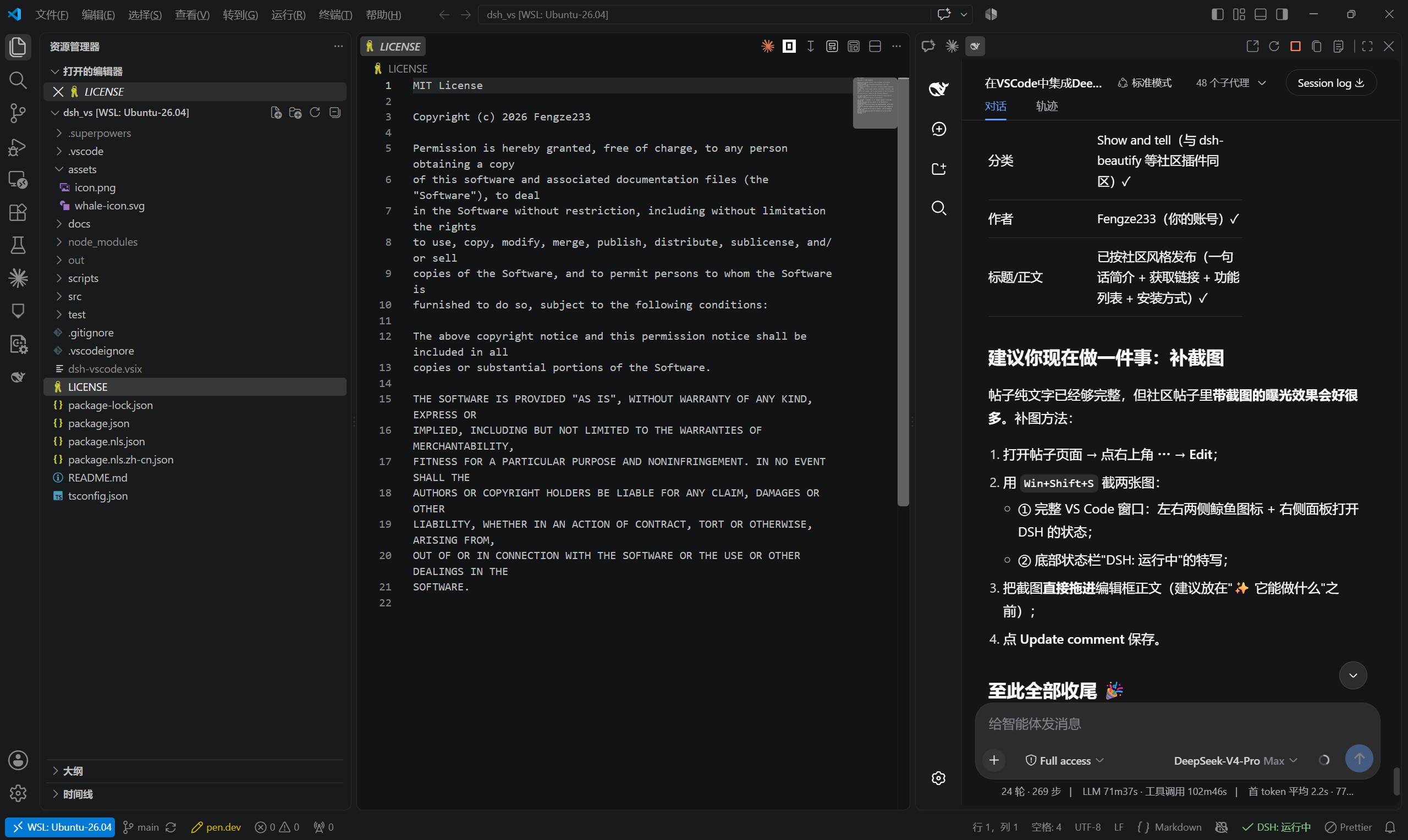
✨ Features
- 🖱️ One-click open: a DSH whale icon in both the left Activity Bar and the right Secondary Side Bar — click either to embed the DSH page in that sidebar;
- 🚀 Automatic service management: auto-detects the port — reuses an already-running
dsh web, otherwise starts one silently in the background and loads it once ready; - 🔄 Live status sync: four-state status bar indicator (running green / starting yellow / failed red / stopped gray); click it to toggle the panel;
- 🛟 Error fallbacks: port occupied,
dshmissing, start timeout, crash/disconnect — each has a dedicated page with one-click reconnect; if the configured port is taken by another program, the extension temporarily falls back to the first free port for that session, never a blank screen; - 🌐 Bilingual UI: copy follows the VS Code display language — Chinese for
zh-*, English otherwise; - 🧹 Clean exit: closing the window stops the auto-started service, no zombie processes; manually started services are never touched;
- 🔒 Security boundary: loopback addresses only (127.0.0.1 / localhost / [::1]); no credentials are read.
📥 Installation
Option 1: Marketplace (recommended)
Search for DSH (publisher Fengze233) in the VS Code Extensions view, or run:
code --install-extension Fengze233.dsh-vscode-panel
Marketplace page: https://marketplace.visualstudio.com/items?itemName=Fengze233.dsh-vscode-panel
Option 2: .vsix package
- Download the latest
dsh-vscode.vsixfrom Releases; - In VS Code press
Ctrl+Shift+P→ runExtensions: Install from VSIX...→ select the file; - Reload the window (
Developer: Reload Window).
Option 3: Build from source
git clone https://github.com/Fengze233/dsh-vscode.git
cd dsh-vscode
npm install
npm run package        # produces dsh-vscode.vsix, then install as in Option 2
Prerequisite: the dsh CLI from DeepSeek Harness must be installed and on your PATH (the extension detects it and shows a hint if missing).
🚀 Usage
- After installation, a DSH whale icon appears in both the left Activity Bar and the right Secondary Side Bar;
- Click either icon: the extension auto-starts (or reuses)
dsh weband embeds the DSH page in that sidebar;- Click the right icon → the panel opens on the right, leaving the file explorer untouched;
- If
dsh.portis occupied by another program, the extension automatically switches to the first free port for this session only (your setting is unchanged; a notification tells you the temporary port);
- Panel title bar buttons:
Open in BrowserRestart ServiceStop ServiceCopy URLShow Logs; - The bottom status bar shows the service status; click it to toggle the panel.
Command palette (prefixed DSH:)
| Command | Description |
|---|---|
DSH: Open Panel | Open the left panel |
DSH: Open in Secondary Side Bar | Open the right panel |
DSH: Open in Browser | Open the DSH page in the system browser |
DSH: Restart Service | Restart the extension-managed service |
DSH: Stop Service | Stop the extension-started service |
DSH: Copy URL | Copy the DSH page URL |
DSH: Show Logs | Open the extension log output channel |
DSH: Copy Logs | Copy the full DSH log (environment info + service log) to the clipboard for bug reports |
DSH: Retry Bridge Install | Reinstall the bridge and restart the service |
DSH: Uninstall Bridge | Remove the bridge package and restore cordis.patch.yml |
🔗 Bridge integration
After installation, the extension installs its own bridge package dsh-vscode-bridge into DSH's official client-plugin extension point under your DSH user directory, enabling two integrations:
- 🔗 External links: clicking a link in the panel opens it in your system browser (instead of being trapped inside the iframe);
- 📂 File jumps: clicking a file path in the panel opens the file in VS Code.
Install / uninstall mechanism (transparency disclosure)
To let the DSH page communicate with VS Code, the extension will:
- Install its bridge package
dsh-vscode-bridgeinto your DSH user directory ($DSH_HOME/profiles/web, default~/.dsh/profiles/web) via DSH's official client-plugin extension point; - Write a marked
insert:entry (wrapped in# dsh-vscode-bridge: begin/# dsh-vscode-bridge: end) intocordis.patch.yml, registering the bridge as a DSH client plugin — writing only to the user directory and never touching the DSH installation directory.
To remove: run DSH: Uninstall Bridge — the extension deletes the marked entry and the bridge directory, restoring the original cordis.patch.yml (your own content is untouched).
Bridge-related settings (dsh.*)
| Setting | Default | Description |
|---|---|---|
dsh.bridge.enabled | true | Enable the bridge (when off: no install, no injection, no warning; the two integrations are unavailable) |
dsh.workspaceRootIndex | 0 | For multi-root workspaces: which root to use as the dsh web process working directory (out-of-range falls back to the first) |
dsh.bridge.silenceWarning | false | Suppress the bridge degradation warning |
Degradation behavior
The bridge only works inside the panel. If it is inactive (e.g. you open the DSH page in a browser, or the install failed), the panel remains fully usable — only the two integrations above are unavailable; a one-time startup warning (with "Retry Install" / "Don't Show Again") is shown.
⚙️ Settings (dsh.*)
| Setting | Default | Description |
|---|---|---|
dsh.port | 3080 | Desired port (used for both detection and startup) |
dsh.host | 127.0.0.1 | Service address (loopback only) |
dsh.autoStart | true | Auto-start the service when it is not running |
dsh.stopOnExit | true | Stop the extension-started service when the last window closes |
dsh.extraArgs | [] | Extra arguments appended when starting dsh web |
dsh.executablePath | "" | Absolute path to the dsh executable (dsh.cmd on Windows); empty = look up on PATH |
🌍 Localization
UI copy follows the VS Code display language (Configure Display Language): zh-* → Simplified Chinese, anything else → English.
🧑💻 Development
Requirements: Node.js ≥ 22, VS Code ≥ 1.91.
npm install
npm run test          # 129 unit/integration tests (including a full real dsh web flow)
npm run compile       # builds out/extension.js
npm run watch         # watch build
npm run typecheck     # type check
npm run package       # package .vsix
Debugging: open this folder in VS Code and press F5 to launch the Extension Development Host.
src/
├── extension.ts          # entry: assembly and command registration
├── i18n.ts               # runtime copy dictionary (zh-* Chinese / otherwise English)
├── config.ts             # settings normalization (loopback whitelist)
├── service/
│   ├── detect.ts         # port probing (DSH marker detection)
│   ├── process.ts        # cross-platform subprocess wrapper (dsh / dsh.cmd)
│   └── manager.ts        # service manager state machine (core)
├── bridge/               # bridge: installer, handshake host, message handling, status
├── panel/
│   ├── html.ts           # panel page templates (minimal CSP)
│   └── provider.ts       # WebviewViewProvider (iframe + placeholder pages)
├── workspaceRoot.ts      # multi-root workspace resolution
└── statusbar.ts          # status bar controller
🧭 Known limitations
- The colored icon on the "Get Started with DSH" walkthrough card comes from Marketplace gallery data and only appears after the extension is published (the card itself works regardless);
- VS Code platform rule: the left icon opens the left panel, the right icon opens the right panel — the left icon cannot open the right panel.
🌐 Community
This is a DeepSeek Harness community plugin (topic: dsh-plugin).
- DSH official repo: https://github.com/deepseek-ai/deepseek-harness
- Issue tracker: https://github.com/Fengze233/dsh-vscode/issues
- DSH community discussions: https://github.com/deepseek-ai/deepseek-harness/discussions
📄 License
MIT © 2026 Fengze233
프로젝트 파일 및 신호
표시된 항목은 디렉터리 스냅샷에서 감지된 공개 저장소 신호입니다.
저장소 정보
- 언어
- TypeScript
- 라이선스
- MIT
- 최신 릴리스
- v0.2.2
- 마지막 업데이트
- 2026. 8. 17. AM 9:04
신중하게 설치하기
소스 코드, 권한, 수명 주기 스크립트, 의존성 및 네트워크 접근을 검토하고 신뢰하지 않는 플러그인은 격리 환경에서 테스트하세요.