Installation
npx -y @deepseek-ai/dsh plugin --profile web add github:Jiyr0119/dsh-workspace-explorerThis installation command is an unverified starting point generated from the GitHub repository address.
README
Maintainer-authored documentation snapshot.
dsh-workspace-explorer





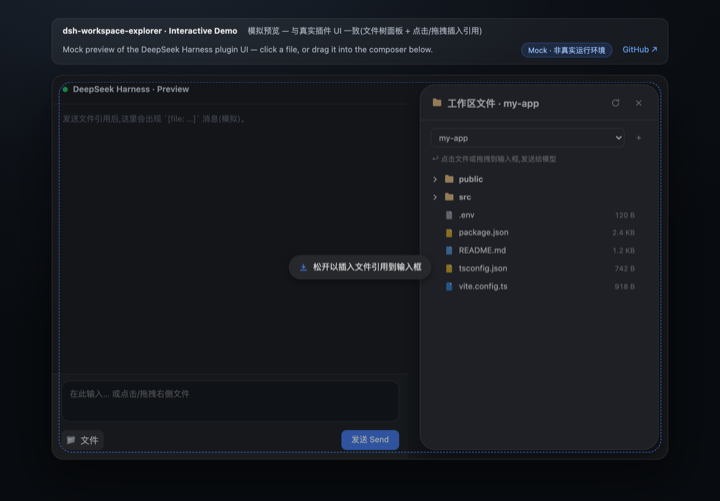
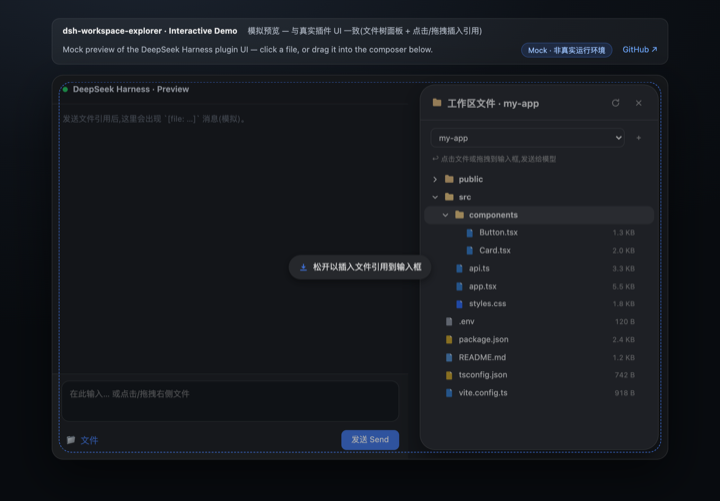
A workspace file explorer for the DeepSeek Harness Web UI: a file-tree button in the session header opens an animated popup showing the current workspace's directory tree — click or drag a file to send its reference to the model.
Inspired by the VS Code / Cursor project tree, filling the gap of a missing directory view in DSH after workspaces are added.
🖥 Live Demo (GitHub Pages)
An interactive mock of the panel UI — no DeepSeek Harness needed to try it. The real plugin runs inside the Harness web UI as a dynamic Cordis plugin.
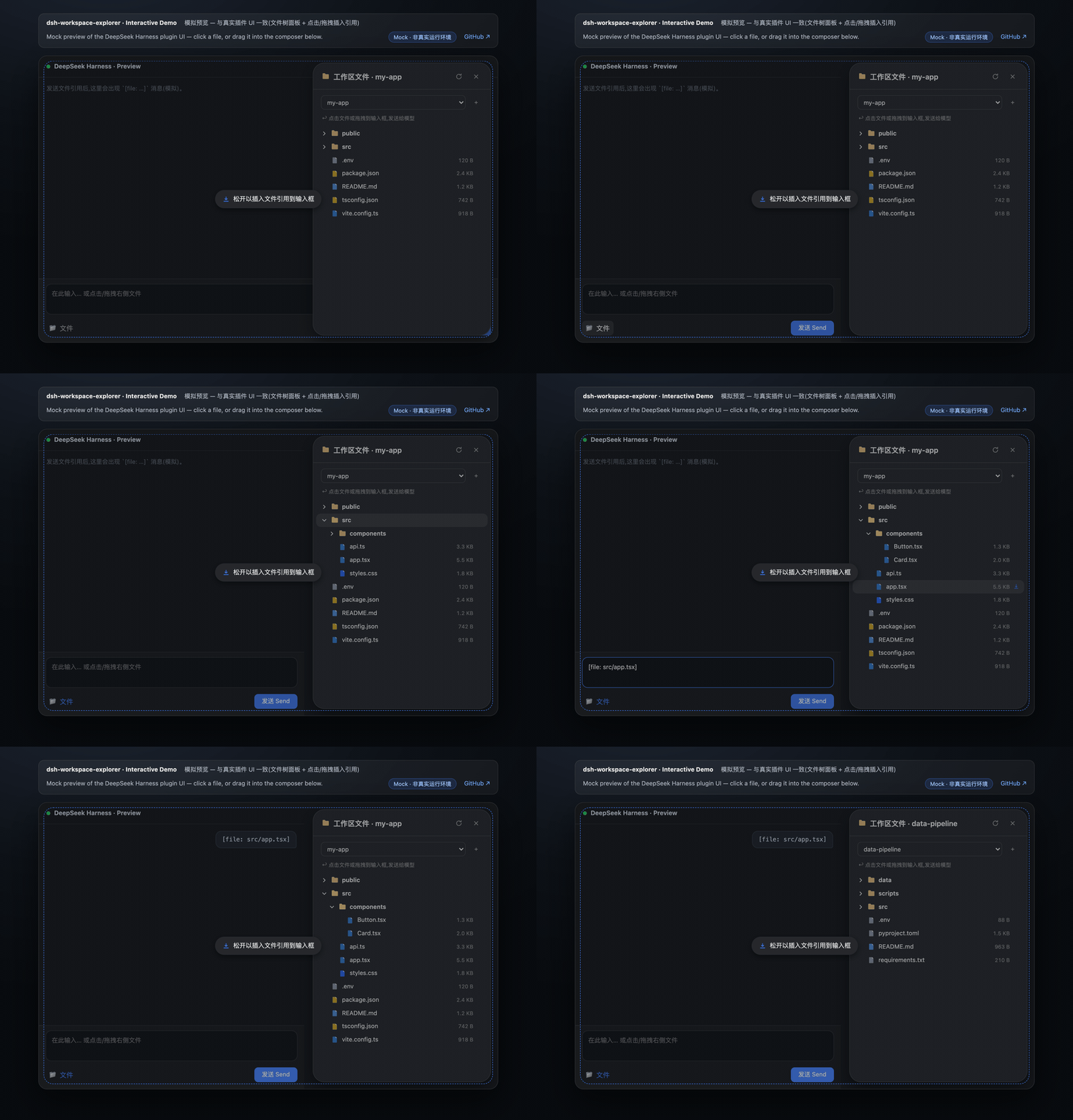
Screenshots · 截图
Features
- 📂 Animated popup — a file-tree icon in the session header (beside the session log button) opens a floating panel with a spring-like fade/scale-in animation; the popup is measured live to sit between the session header and the composer (the chat area's right side), so it never covers the input box
- 🗂 Top tab bar — click at the top of the panel to switch between Files and Settings; the Settings page tunes behavior live (hide noise dirs, show sizes, reference format, preview lines, panel width) and mirrors into DSH Settings → Workspace Explorer
- 🗂 Lazy-loading tree — directories load on demand; noise dirs (
node_modules,.git,dist,__pycache__, …) are hidden automatically - 🎨 File-type icons — filled, color-coded document badges per extension (TS / JS / Python / JSON / Markdown / image / config / shell, …); amber folders that brighten when expanded
- 🖱 Click to insert — click a file row to append a
[file: relative-path]reference to the composer; after sending, the model resolves it with itsreadtool - 🖱 Drag & drop — drop a file into the composer to insert at the caret (fullscreen dashed hint); dropping elsewhere appends to the end
- 🌓 Theme-aware — built entirely on DSH's
--dsw-alias-*design tokens; adapts to light/dark with a native dialog look (16px radius, lv3 shadow) - 🔍 Search & filter — filter files by name across loaded directories (flat result list with a match count)
- 👁 Inline preview — peek the first 60 lines of any text file; insert the reference, or paste the full content for small files (≤ 32 KB)
- 🌐 i18n — zh/en dictionaries registered through DSH's locale service; the panel follows the DSH UI language
Quick Start
Installation & usage
Way 1 · Native install via dsh plugin add / storefront (recommended)
One command installs the full plugin — no build step, no config changes. The npm package ships a native host half (lib/index.js, webServer JSON routes incl. /dsh-we/api/config) and a browser bundle (lib/client.js via dsh.plugin.json).
dsh plugin --profile web add -w @jiyr0119/dsh-workspace-explorer@latest
(or click the install button in the DSH market). After install, a file-tree icon appears in the session header; restart or hard-refresh the web UI if needed. This is the zero-config, no-build path.
Way 2 · npm source package (manual paste)
npm install @jiyr0119/dsh-workspace-explorer — the package ships dynamic/host.js / dynamic/client.js for the manual paste flow below, with semver releases.
Way 3 · Dynamic plugin paste (zero-build fallback) A dynamic Cordis plugin: no build step, no config changes — useful for quick experimentation or environments without the storefront.
- In the DSH web UI, have an agent run
cordis_define(or use the dynamic plugin panel) withidPrefixwsex. - Paste the whole
dynamic/host.jsinto Host code. - Paste the whole
dynamic/client.jsinto Client code. cordis_runto activate; authorize on the Run card when it first appears.- Click the 🌲 file-tree icon in the session header → expand directories → click a file, or drag it into the composer, then send.
ℹ️ pnpm note: modern pnpm (9/10) refuses to add a dependency at the workspace root (
ERR_PNPM_ADDING_TO_ROOT), hence the-wflag above. Alternative: create~/.dsh/profiles/web/.npmrccontainingignore-workspace-root-check=true.
⚠️ Common misconception: a listing alone never auto-installs anything — users still click install. With Way 1 the full UI now appears after install (native bundle, v0.4.0+ verified with a clean
dsh plugin add— no boot errors).
See docs/install.md for details.
Usage
- Click the 🌲 file-tree icon at the top of the session header (right side, beside the session log button) to open the popup.
- Expand directories to browse files.
- Click a file, or drag it into the composer, then send.
- Use the Settings tab at the top of the popup (or DSH Settings → Workspace Explorer) to adjust panel behavior.
Project Structure
dsh-workspace-explorer/
├── README.md             # Docs — English (default)
├── README.zh.md          # Docs — 中文
├── LICENSE               # MIT
├── CHANGELOG.md          # Release notes
├── manifest.json         # Plugin metadata
├── package.json          # Repo metadata (not an npm package)
├── demo/
│   ├── index.html        # Interactive mock preview (GitHub Pages)
│   └── preview.gif       # Demo animation (README)
├── .github/
│   └── workflows/
│       └── pages.yml     # Deploys demo/ to GitHub Pages
├── docs/
│   ├── install.md        # Install guide
│   ├── native-package.md # Native DSH package roadmap (upstream PR sketch)
│   └── publish.md        # Publishing workflow (GitHub + npm)
├── src/
│   ├── index.ts          # Native host half: webServer JSON routes (/dsh-we/api/*)
│   └── client/
│       └── index.tsx     # Native client half: popup + tree + icons + drag & drop
├── dynamic/
│   ├── host.js           # Dynamic paste host half: fs listing + ws-tree.* RPC
│   └── client.js         # Dynamic paste client half: popup + tree + icons
└── lib/                  # Built artifacts (lib/index.js + lib/client.js)
Implementation Notes
| Capability | Mechanism |
|---|---|
| Directory listing | Host fs.resolve / fs.listDir |
| Host→Client RPC | harness.handle('ws-tree.list' / 'ws-tree.peek') ↔ host.call(...) |
| Popup | shell.overlay slot (useWorkspaces / useSessions), position measured between session header & composer |
| Toggle button | conversation.session.header.utilities slot (file-tree icon) |
| Composer write | conversation.input.dock → inputActions.setDraft |
| Drag & drop | HTML5 DnD; native caret insert in the textarea, append elsewhere |
| Theming | --dsw-alias-* CSS variables (light/dark) |
Version
Current version v0.4.0 — animated popup opened from a session-header file-tree icon, positioned between the header and the composer; full feature set (tree, search, preview, click/drag references, settings, i18n). See CHANGELOG.md for release notes.
Roadmap
Done ✅
- v0.1 core: right-side file tree, click / drag-to-composer references, native DSH look
- Search & filter; inline preview (first 60 lines); content insertion for small files (≤ 32 KB)
- i18n (zh/en via the DSH locale service, follows the DSH UI language)
- Demo language toggle, GitHub Pages preview, demo GIF, storefront screenshots
- npm source package +
dsh.bundlecontract + awesome-dsh-plugin PR (#1158, pending merge)
Track A — UX polish
- Multi-select & batch insert file references (Shift / Cmd)
- Draggable / resizable panel that remembers position & width
- Full keyboard navigation (↑↓ to move, Enter to insert, Esc to close)
- Path actions: copy path, reveal in the OS file manager
Track B — Productivity
- Content search across loaded dirs (host-side grep)
- Recent files / favorites
- Paginated preview for large files (next / previous page)
- File operations (rename / delete / new, under the fs permission fence)
Track C — Ecosystem & distribution
- npm
@jiyr0119/dsh-workspace-explorer(v0.1.1 publishing) - awesome-dsh-plugin listing (PR #1158)
- Native DSH package (
@Remotenamespace; needs upstream support) — seedocs/native-package.md - dsh-genie hardened install (host-side persistence)
- CI: lint + e2e + automated release
Track D — Quality & maintainability
- Virtual scrolling (huge directories)
- Light / dark theme regression checks
- Playwright e2e for the demo and the real plugin
License
Project files and signals
Shown items are public repository signals detected in the directory snapshot.
Repository information
- Language
- JavaScript
- License
- MIT
- Latest release
- v0.4.0
- Last updated
- Aug 17, 2026, 9:10 AM
Install deliberately
Review source code, permissions, lifecycle hooks, dependencies and network access. Test untrusted plugins in an isolated environment.